Die SEH myUTN USB-Deviceserver sind eigentlich eine zuverlässige Sache. Bei einem Kunden allerdings streikt seit neuestem leider immer mal wieder der Auto-Connect.
Die Funktion “Auto-Connect” sorgt dafür, das ein ausgewählter USB-Port an einem Deviceserver automatisch an einem Computer zur Verfügung steht. Bei diesem Kunden hängt an Port 1 ein reinerSCT cyberJack-Kartenleser. Das gesamte Konstrukt funktionierte bislang ohne irgendwelche Überraschungen, aber seit März 2021 gab es bereits drei Mal den Fall, das der Kartenleser nicht automatisch verbunden wurde.

Umgesteckt oder irgendetwas geändert hat sich nichts. Das USB-Gerät wird angezeigt, nur eben der Connect fehlt. Klar kann man einfach im “UTN Manager” den Port bzw. das Gerät wieder verbinden, die Anwenderin ist allerdings gewohnt, das es einfach so läuft.
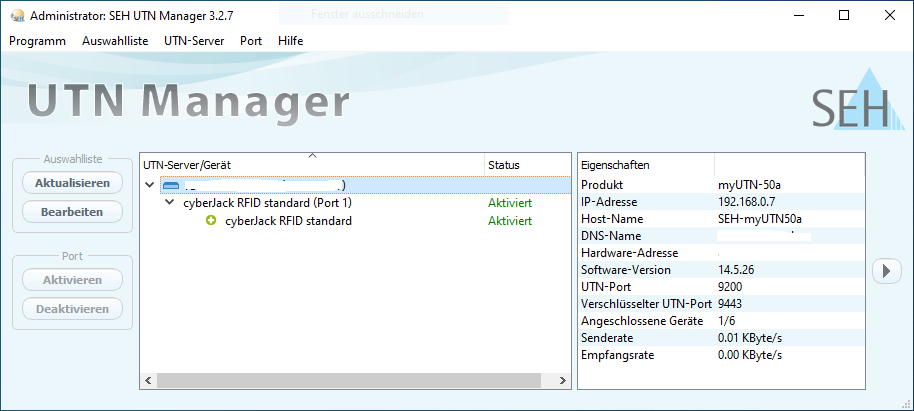
Eine Überprüfung der Verbindungen, der Software- und Firmware-Stände brachte nichts. Ab und an läuft es schlichtweg nicht. Als Workaround habe ich mir dann ausgedacht, mittels einer Aufgabe den Connect nach der Benutzeranmeldung nochmal durchführen zu lassen. An dieser Stelle kommt einem gelegen, das SEH eine entsprechende CLI anbietet und man sich leicht aus dem “UTN Manager” heraus zudem Verknüpfungen mit der nahezu komplett nutzbaren Befehlszeile anlegen lassen kann.
Die Verknüpfungen erzeugt man wie folgt:
- Das betreffenden USB-Gerät mit der rechten Maustaste anklicken,
- aus dem Kontextmenü den Punkt “UTN Aktion erstellen…” auswählen,
- die Voreinstellung belassen,
- ggf. den Namen der Aktion ändern,
- zu guter Letzt auf “Speichern & Beenden” klicken.
Aus den Eigenschaften dieser Verknüpfungen lässt sich dann der Befehl entnehmen:
"C:\Program Files\SEH Computertechnik GmbH\SEH UTN Manager\screxe.exe" "C:/Program Files/SEH Computertechnik GmbH/SEH UTN Manager/utnm.exe" /c "activate 192.168.0.7 1"
Hier wird der Port 1 aktiviert. Das ist soweit schon sehr gut, allerdings erscheint eine Meldung am Ende des Vorgangs. Diese kann einfach durch das Anhängen von “/q” unterdrückt werden. Erfreulicherweise liefert der Befehl einen Rückgabewert, den man Auswerten oder Protokollieren kann. Ein simpler Dreizeiler als Batch-Skript sieht so aus:
@echo off

rem Aktiviert den ersten USB-Port am SEH myUTN-50a

"C:\Program Files\SEH Computertechnik GmbH\SEH UTN Manager\screxe.exe" "C:/Program Files/SEH Computertechnik GmbH/SEH UTN Manager/utnm.exe" /c "activate 192.168.0.7 1" /q
echo %date% - %time% - %errorlevel% >> SEH-Port.log
Dieses Skript als Aufgabe bei der Benutzeranmeldung ausgeführt protokolliert den (Miss-)Erfolg der Port-Aktivierung. Anbei ein Auszug aus dem Log:
01.04.2021 - 23:26:19,83 - 0
02.04.2021 - 23:26:19,04 - 0
03.04.2021 - 23:26:19,59 - 0
04.04.2021 - 23:26:18,44 - 0
05.04.2021 - 19:46:16,47 - 0
06.04.2021 - 8:31:36,65 - 0
06.04.2021 - 13:05:39,08 - 23
Null bedeutet erfolgreich, 23 heißt das der Port bereits aktiv ist. Soweit also alles im grünen Bereich. Anbei die Hilfe der “utnm.exe”:
C:\Program Files\SEH Computertechnik GmbH\SEH UTN Manager>utnm /?
NAME
utnm.exe - UTN connection management, i.e. (de)activation of USB ports and
connected USB devices, for UTN and INU servers by SEH Computertechnik GmbH
SYNOPSIS
utnm.exe
[/c <"command string">] [/h] [/k ] [/mr] [/nw]
[/p ] [/q] [/sp ] [/t ] [/v]
DESCRIPTION
utnm is used to manage UTN connections, i.e. the (de)activation of USB ports
and connected USB devices.
It is the command-line interface of the SEH UTN Manager, i.e. the minimal
version of this tool (usable without graphical user interface, fewer features).
You need a UTN or INU server from SEH Computertechnik GmbH to use utnm.
You can also use utnm in scripts to automate UTN connections.
NOTE:
- Options in square brackets are optional.
- Elements in <> are to be replaced with the appropriate values.
Examples: = IP address or host name of a UTN or INU server;
= vendor ID of the USB device; = product ID of
the USB device; etc.
- Options are not case-sensitive.
- Only the ASCII format can be read.
OPTIONS
/c | /command

Verheiratet, Vater von zwei Kindern, eines an der Hand, eines im Herzen. Schon immer Technik-Freund, seit 2001 in der IT tätig und seit über 15 Jahren begeisterter Blogger. Mit meiner Firma IT-Service Weber kümmern wir uns um alle IT-Belange von gewerblichen Kunden und unterstützen zusätzlich sowohl Partner als auch Kollegen.
 Artikel (RSS)
 XING
XING










Hi Andy,
super Beitrag – hat mir sehr geholfen!
Bist du mit dem Fall zufällig vertraut, dass bei dem Befehl
“C:/Program Files/SEH Computertechnik GmbH/SEH UTN Manager/utnm.exe” /c “activate ”
die Hilfestellung wie mit Befehl
“C:Program FilesSEH Computertechnik GmbHSEH UTN Manager>utnm /?”
kommt? Ich erhalte also keinen Return-Code, sondern immer die Hilfe.
Die Abfrage des Status mit /c “state….” funktioniert problemlos. Selber Befehl zur Aktivierung liefert die Hilfe-Ausgabe…
Vielleicht hast du da zufällig Erfahrung 🙂
I.d.R. passiert das meiner Erfahrung nach immer dann, wenn mit der Syntax oder dem Befehl etwas nicht stimmt. Bei Copy&Paste von Befehlen aus Anleitungen heraus verstecken sich gerne mal Zeichen oder wird ein anderer Zeichensatz verwendet. Im Zweifelsfall alles mal sauber in einer neuen Datei eintippen. Ggf. Mal mit Notepad++ oder mal nach versteckten Zeichen schauen, Codierung, etc. schauen.
Hallo, ist es auch möglich über Powershell den UTN-Server zu steuern? Bzw. Ports zu de/aktivieren und zuzuweisen? Ich habe bis jetzt nämlich keine Möglichkeit gefunden die Funktionen zu steuern. Das einzige was ich schaffe ist den UTN Manager zu starten.
Am besten mal den Hersteller-Support fragen.